
Start with AI, import an existing CV, or write a blank CV yourself. Every route gives you the option to review AI suggestions before styling or downloading. You choose which changes to keep.
An existing CV or notes about your experience. Have the job description ready if you want to tailor your application.
How do I create a CV for a job vacancy in Timor-Leste?
Choose a template, bring in your details, then work through Add content, Style and review, and Save and download. You can return to an earlier step without retyping your CV.
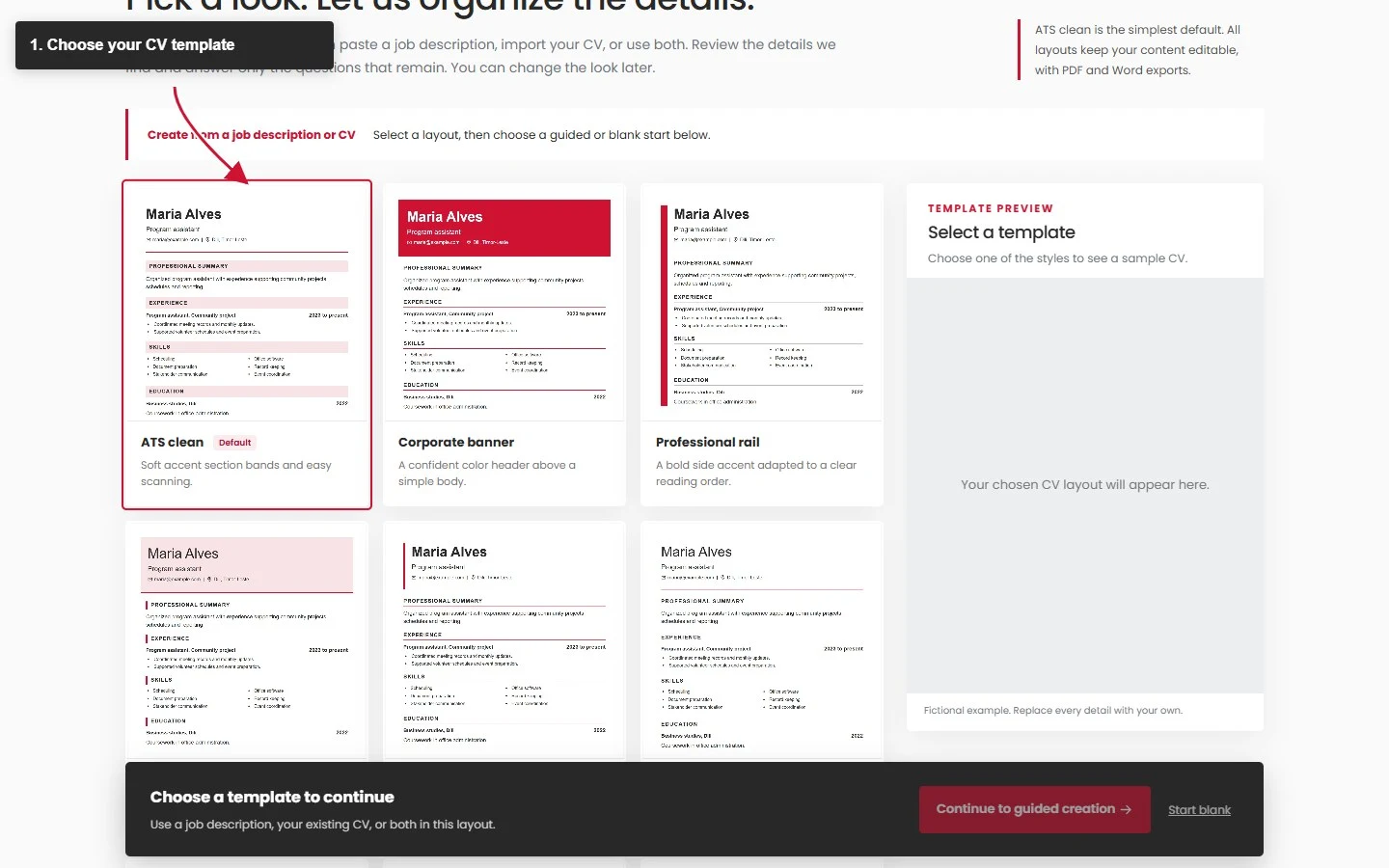
1Choose a template
Open the template chooser and select a design. ATS clean is the simple default. Choose the guided route to use a vacancy, an existing CV or both; choose the blank route if you prefer to write directly in the editor.
2Bring your details
In the guided route, paste a vacancy, upload a DOCX or selectable-text PDF, or use both. Review imported details and answer the questions with your own facts. If you chose a blank CV, type your experience, education and skills directly in Add content.
3Review your populated draft
For a guided draft, check the proposed details and select Use this draft. In Add content, check each role, date and qualification. Blank-CV users start here: add your own fields, sections and items, then check the preview.
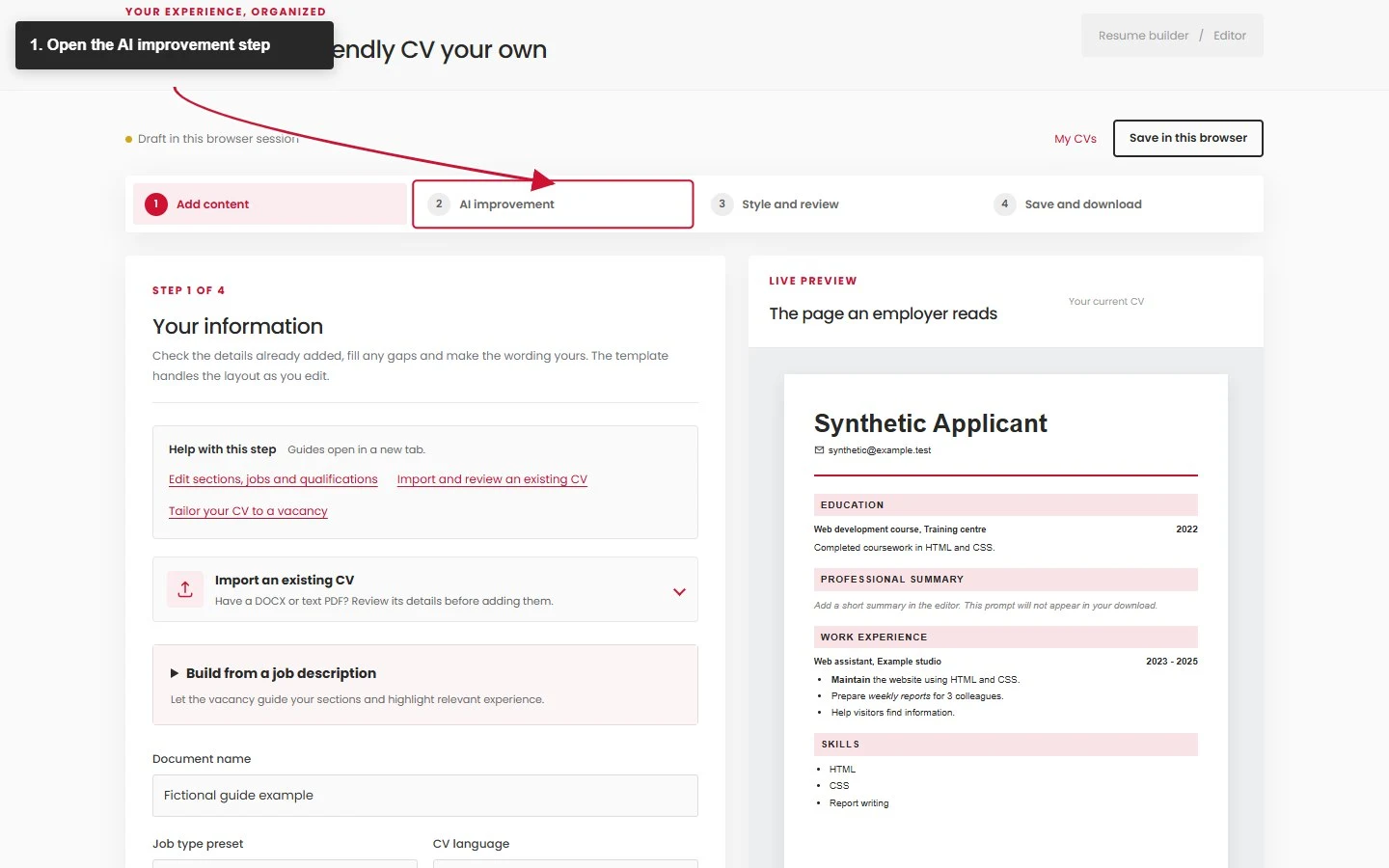
4Choose whether to review with AI
When you continue from Add content, choose Review with AI or Continue without AI. This choice is available even if you started with a blank CV. A vacancy is optional for general feedback. Read and confirm the consent notice before requesting suggestions. Accept selected changes, compare the result, or reject all suggestions.
How to review AI suggestions and choose what to keep
5Style, save and download
Open Style and review to adjust the design. Then open the separate Save and download step. Create an account or sign in when prompted, choose PDF or Word and inspect the downloaded file before applying.
On a phone or tablet, use Edit and Preview to switch views while you work. On a wider desktop screen, the preview sits beside the editor.
Your details appear in the chosen template, and the final file contains your own information rather than the sample CV.