You can get AI suggestions even if you started with a blank CV and wrote every field yourself. Review the proposed changes, accept the ones you want, or reject them all and keep your own version.
A draft with your own experience, education or skills. AI review currently supports English CVs. A job description is optional.
How can AI help improve my CV for job vacancies in Timor-Leste?
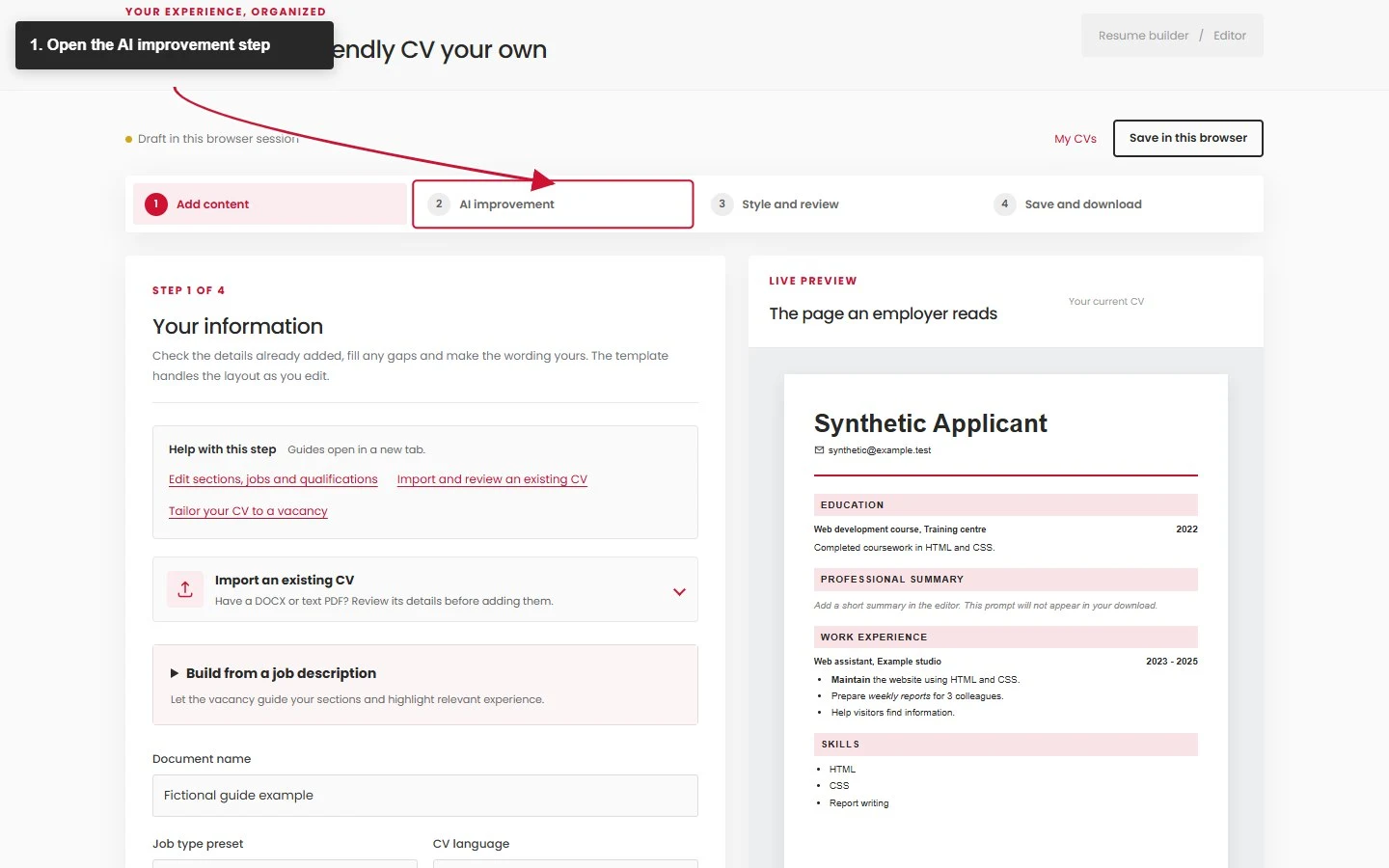
Open the AI improvement step after Add content. Request a review, tick the improvements you want, and confirm or reject the suggestions. Compare both CVs before keeping any changes.
1Open the optional AI review
Finish entering your details, then select Continue to AI review or the AI improvement tab. This separate step is available for blank, imported and guided CVs. Choose Continue without AI if you prefer to skip the review.
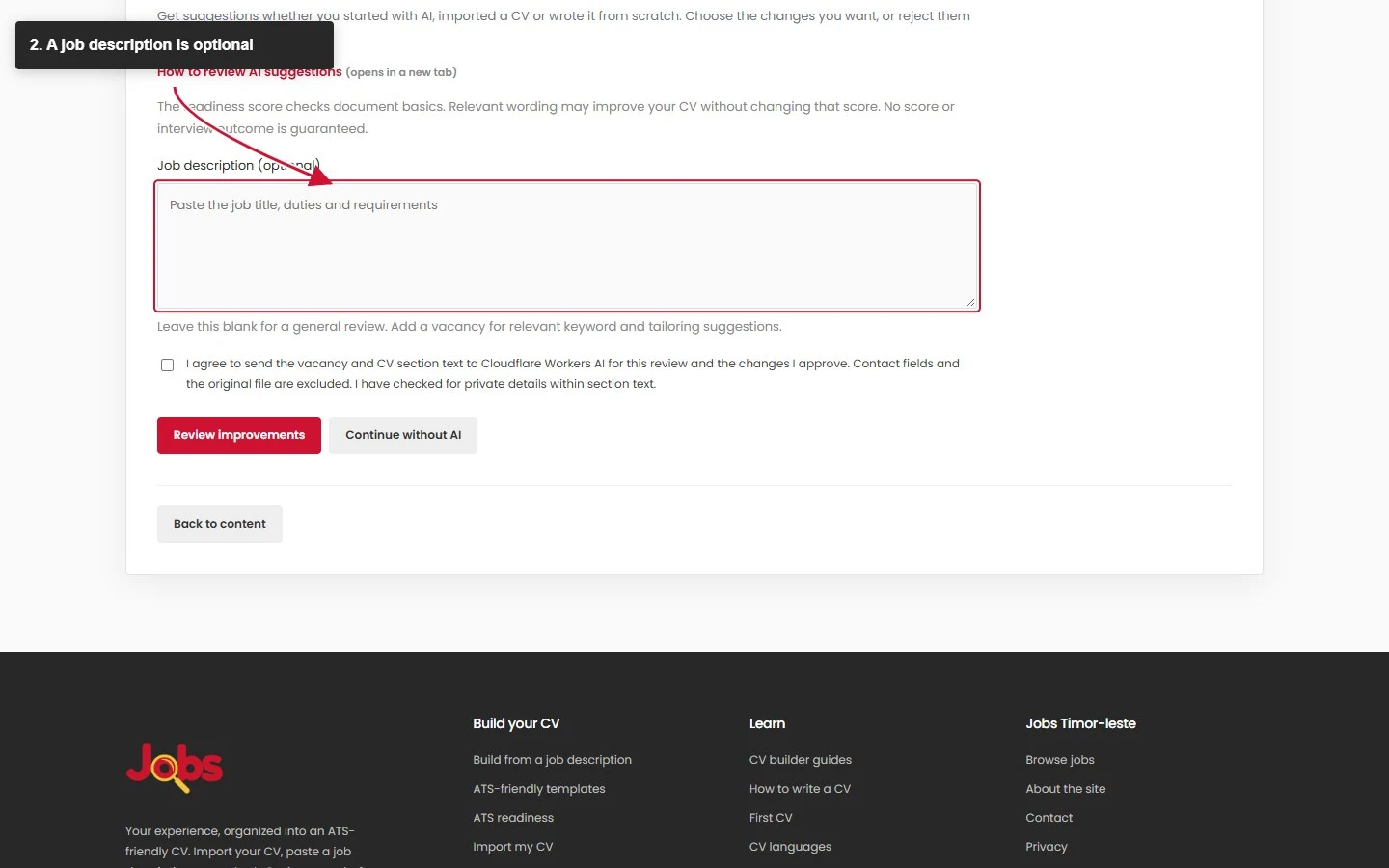
2Choose a general review or add a vacancy
Leave Job description blank for general feedback on clarity, tense and structure. Paste the vacancy if you want relevant keyword and tailoring suggestions too. Read the consent notice, check the box if you agree, and select Review improvements. Contact fields and the uploaded file are excluded from the AI request; check section text for private information.
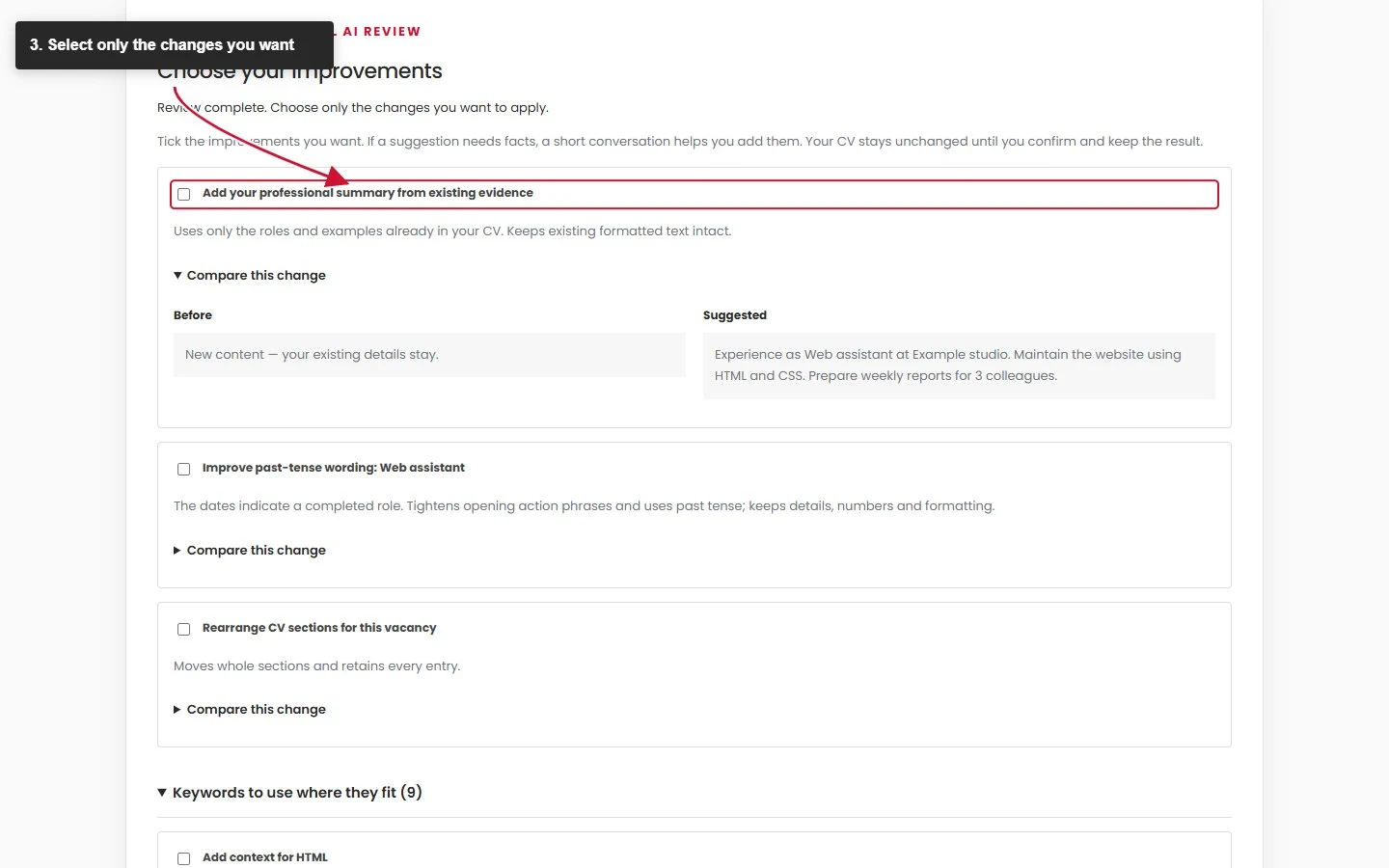
3Select only changes you want
Tick the changes you want. Wording edits show a before-and-after comparison. Keyword, achievement and section suggestions open a short chat when they need your facts. For keywords, tick the relevant sections and jobs. Skills use short labels. Give one short example for each selected role if the CV does not already provide it. AI uses your answer to draft the work bullet and support the skill labels, corrects spelling, and shows each placement for approval. Numerical results need a timeframe and an explanation of how you measured them; a truthful result without numbers is also useful. You can close the chat without approving. Finally, choose Confirm selected changes or Reject all suggestions. Rejecting asks you to confirm before continuing with your current CV.
4Wait for your approved changes to be checked
Keep this tab open while the progress bar is shown. You can play the optional dinosaur jumping game while AI works: press Play, then Space, the up arrow or Jump, or tap the scene. Pause or hide the game whenever you like. It stops when your result is ready. Your CV stays unchanged until you keep the result. If a request fails, you can retry or reject the suggestions.
5Compare the original and proposed CVs
Compare the original and proposed CVs side by side on a larger screen, or one below the other on a phone. Check dates, wording, bullets and section order. The readiness score is a document checklist, not an employer ATS verdict or an interview guarantee; clearer wording may not change it.
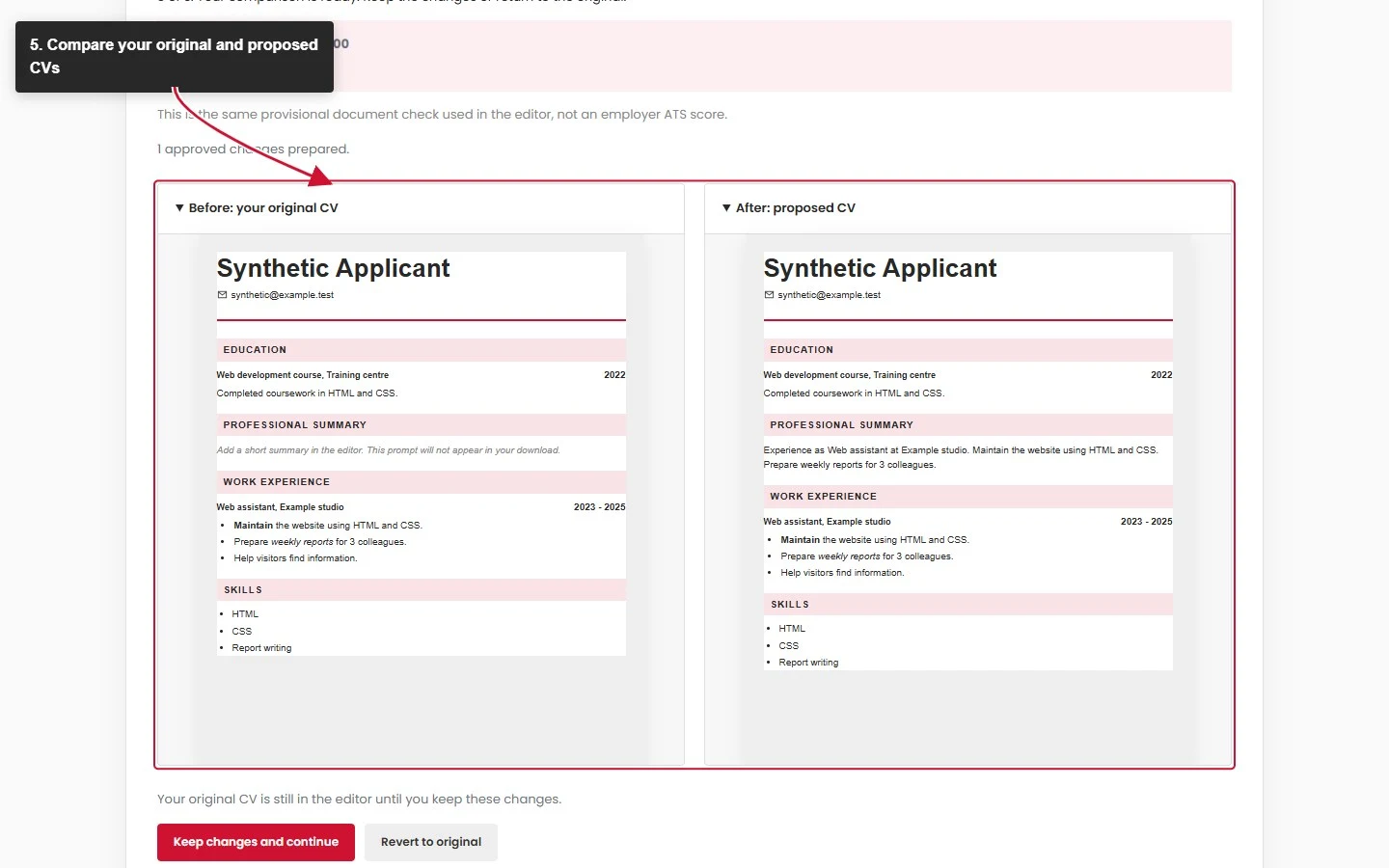
6Keep the result or return to your original
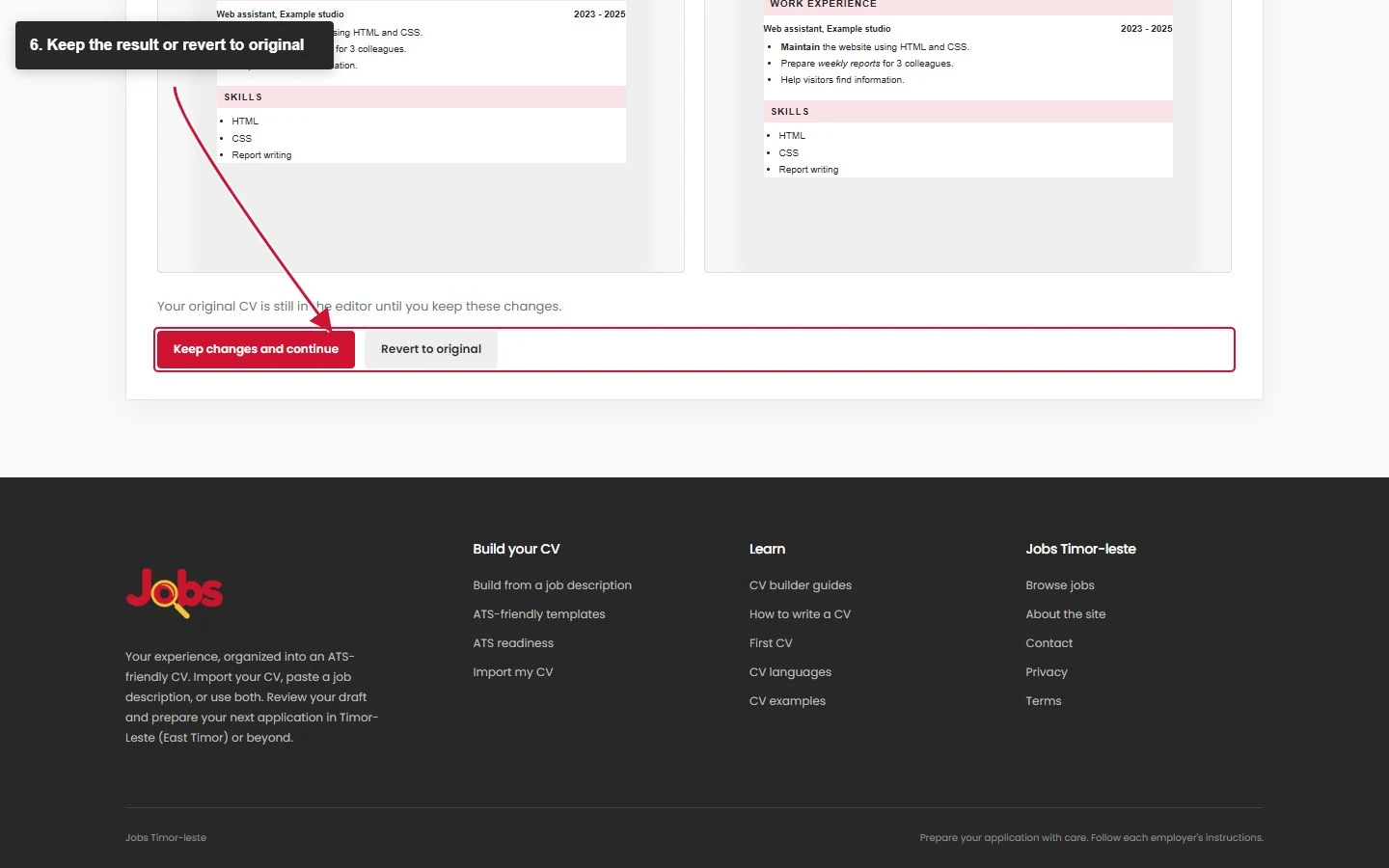
Choose Keep changes and continue to use the result, or Revert to original to keep your previous version. Both choices take you to styling; downloading comes next. After keeping changes, you can return to AI improvement and revert while that CV remains unchanged. Newer edits are protected from an older review.
AI can improve presentation, but only you can confirm your experience. Add a number only if you can explain its source and timeframe. No vacancy means no vacancy-specific keyword suggestions.
You have chosen your original CV or the approved result. Continue to styling, then save and download.