
Make each job and qualification easy to check. Add a whole section when you need a new category, or add an item inside an existing section for another role or course.
A draft open in the Add content step.
How do I organize my CV sections for a job application?
A section is a category such as Education. An item is one qualification inside it. Keep related items together, and use a custom section only when it helps explain relevant experience.
1Add another item in a section
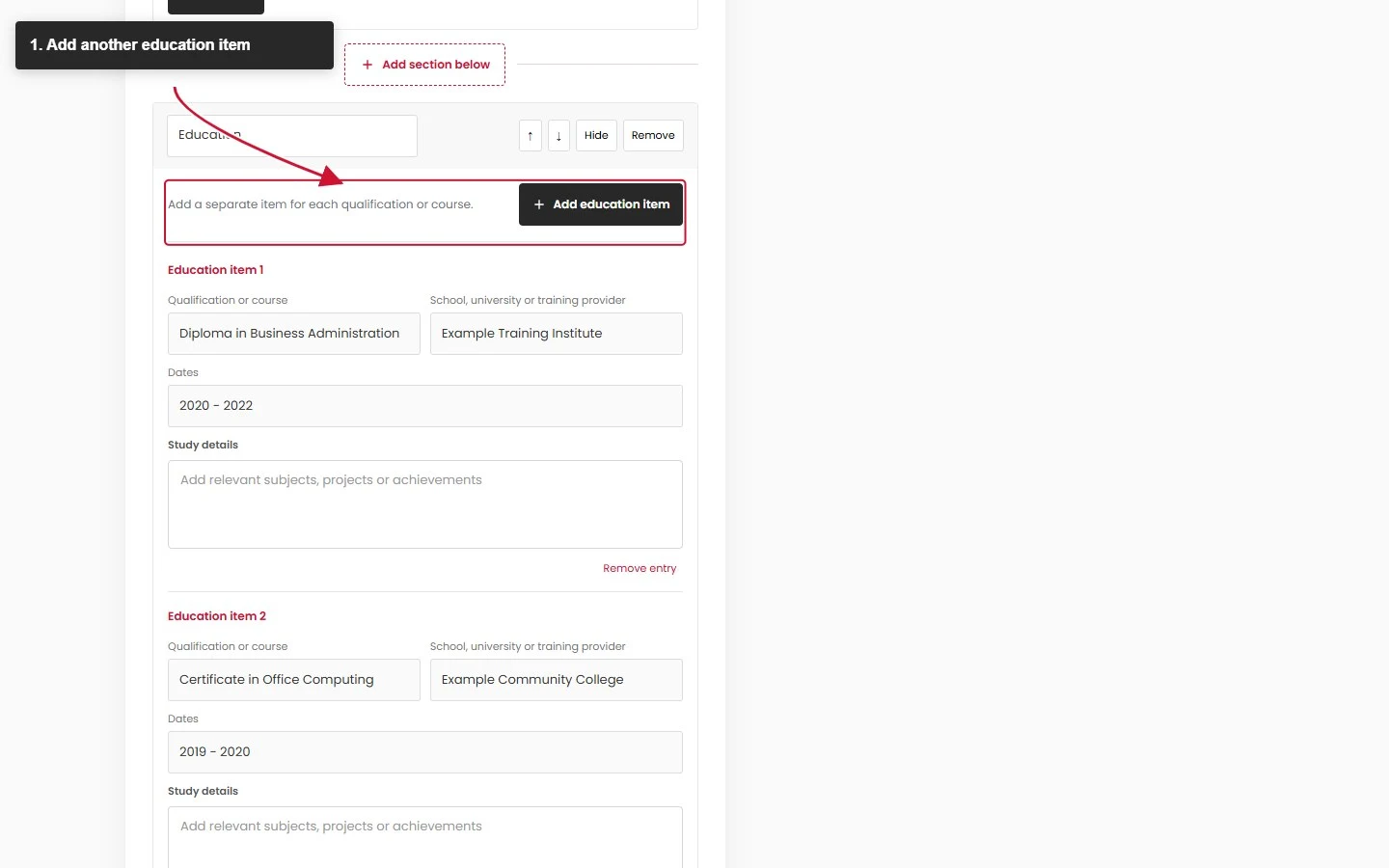
Find the section you want to update. Select Add education item for another qualification, Add role for another job, or Add item in a custom section. Each item has its own editable fields.
2Create or rename a section
Select Add section at the section controls, or Add section below between existing sections. Give it a clear name such as Certifications, Projects or Volunteering. Edit an existing section heading directly to rename it.
3Format duties and details
Use the text editor above the details field for bullets, numbering, emphasis, links and alignment. On short fields, select text to use the floating formatting tools. On touch screens, tap the field; keyboard users can press Alt+F10 to reach the toolbar.
4Check order and remove duplicates
Use the section controls to move, hide or remove a section. Review the confirmation before deleting. Keep one item per job or qualification, and use the preview to check that duties belong to the right role.
5Review your wording before continuing
When your entries are ready, select Continue to AI review. You can request an AI review even if you typed everything into a blank CV. Review the exact proposed edits, select the ones you want or reject them all. Continue without AI keeps your own wording.
Keep headings familiar. Education and Work experience are easier to understand than creative labels that hide what the section contains.
Every item has the right heading, organization and dates. Duties use real list formatting, and there are no duplicated jobs or empty sections in the final file.